Eduroam Visitor Access
JAMK introduced Eduroam Visitor Access in autumn 2026. These accounts are intended for visitors who do not already have Eduroam credentials from their own organization. With a short-term visitor account, visitors can connect to the wireless Eduroam network and access the internet on campus.
If guests have active credentials of the other Finnish higher educational school, can they use their own credentials to connect the Eduroam network. Meaning, they do not need visitor credentials for Eduroam.
All staff members can create Eduroam visitor accounts for guests. Each staff member can have a maximum of 20 active visitor accounts at the same time, and the maximum validity period for an account is seven (7) days. The Jamk Network Usage Policy applies to all network users, including users of the guest network. Jamk Network Usage Rules
Creating a Guest Account
Guest Eduroam accounts can be created at guest.eduroam.fi
- Click Sign In to start using the service.
- Select your institution from the list (Jyväskylän Ammattikorkeakoulu) and sign in using your JAMK credentials.
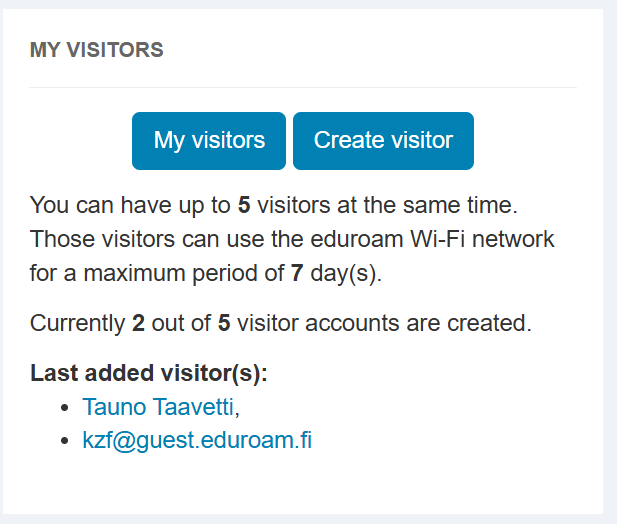
- In the My Visitors section, select Create Visitor to create a new guest account. A single guest account can be used by all visitors attending the event.
- Enter the Visitor’s Information
- Visitor’s name / event name
- Visitor’s email address or mobile phone number
- Select the preferred delivery method for the login credentials in the Notifications section
- Note: The account password will be delivered to the visitor either by email or SMS, depending on your selection. Make sure the email address or phone number is entered correctly. If desired, you can also receive the login information yourself by selecting Send me a confirmation by email.
- Set the validity period for the account (maximum 7 days)
- Optionally add additional information in the comments field, such as the name of an event or lecture.
Modifying Guest Accounts
Through the My Visitors section, you can edit user information, such as extending or changing the account validity period
Connecting to the Eduroam Network
Mobile Devices
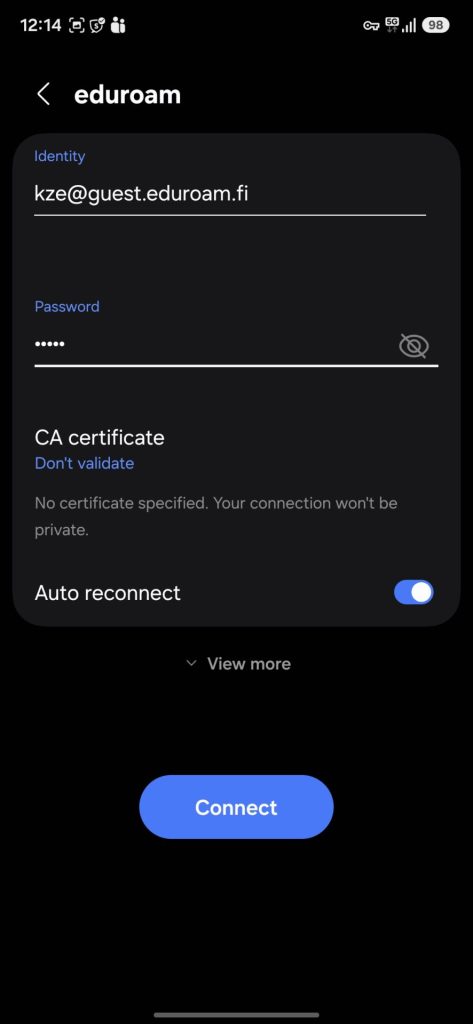
Enter the following information:
- Identity: Eduroam account email address (for example, kze@guest.eduroam.fi)
- Password: Eduroam password
- CA Certificate: Don’t Validate (You may receive a separate prompt to accept a certificate when connecting to the network.)
Computers
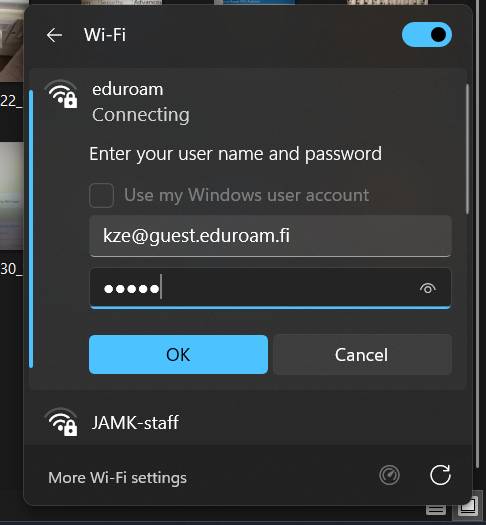
Enter the corresponding network credentials and accept the certificate when prompted.