Accreditation of studies – inclusion
Note: First, read the eRPL accreditation and How to fill in an eRPL application instruction pages and then continue filling in the application according to the instructions below.
Note: Exemption can only be applied for either language studies or the maturity test.
How to fill In the application
When you have previously completed higher education studies elsewhere, you apply for accreditation by selecting ‘Add previously completed studies’ (figure 1).

- Select ‘inclusion’ as the type of accreditation when you apply for accreditation for optional or elective studies. Inclusion is also used when you apply for accreditation to compulsory studies and have completed more than 15 credits.
- Select the person responsible for the course as the handler of the application if you have completed less than 15 credits. If you have completed more than 15 credits, the degree coordinator or the person in charge of the degree programme acts as the handler (figure 2). You can find these persons in your curriculum.
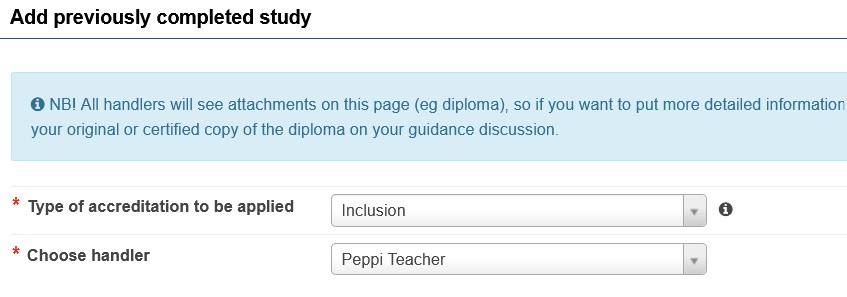
Importing a course to the application
METHOD 1. Importing previously completed studies to the application using the Emrex service
Use Emrex as the first option to import the course information. Emrex retrieves the course details from the national data repository, so you do not need to enter them manually. You also do not need to attach a transcript of records to your application or fill in the place of performance details..
Select the arrow icon next to the Add course button and then choose “Import studies from Emrex” (figure 3).
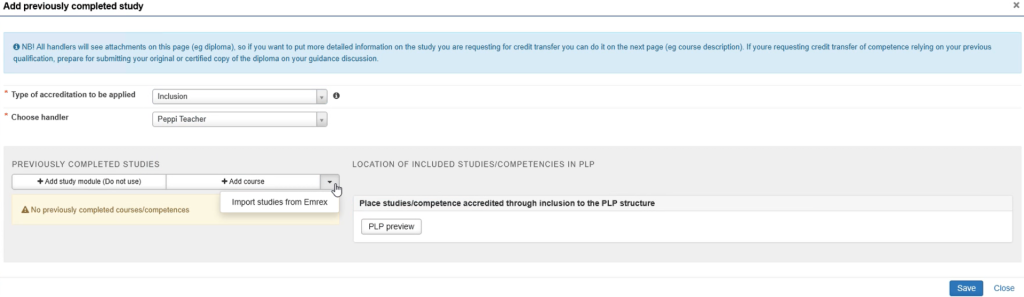
You can retrieve studies completed at both Finnish and foreign higher education institutions for your application.
Next, select the country of the higher education institution from which you want to retrieve your studies (figure 4). The screenshots show the process of retrieving studies completed at a Finnish higher education institution.
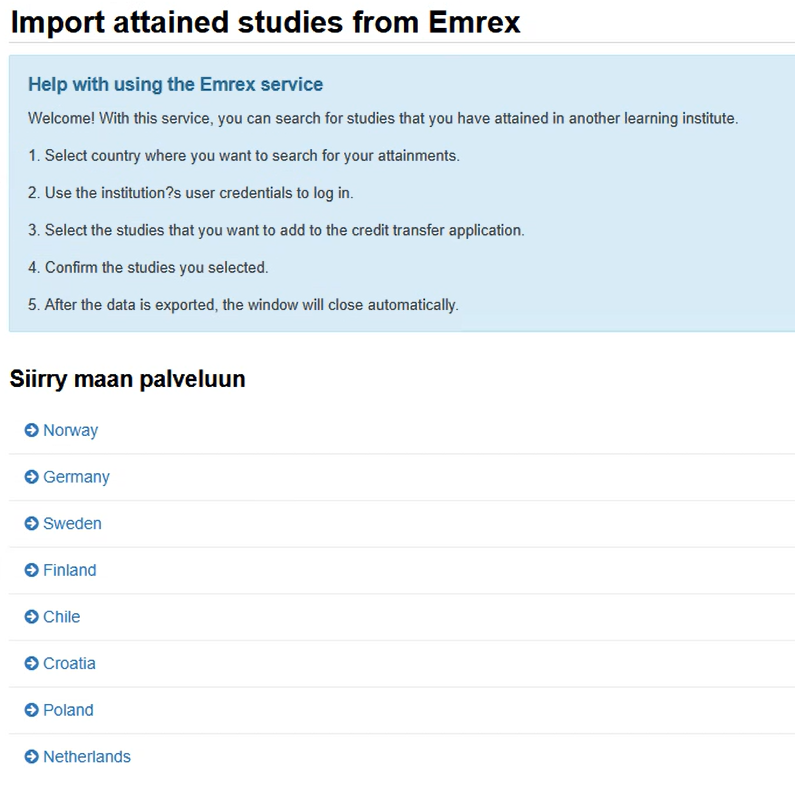
Log in to the service using your HAKA credentials, i.e., your Jamk username. If you selected a foreign higher education institution, you must log in using the credentials of that institution.
Select the course you want to transfer to your application. After selecting it, confirm the transfer of the course information by clicking the Send chosen credits button (figure 5).

Next, you can review your selection and approve the transfer of information by ticking the box “Transfer my study data and personal details”. Finally, click Submit (figure 6).
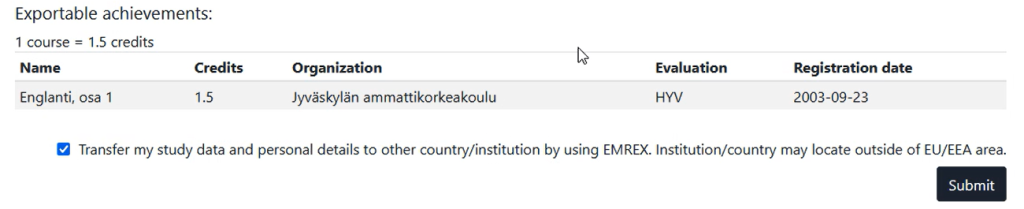
The course information will be transferred directly to your RPL (AHOT) application via electronic transfer. The transferred information includes: course name, credits, language of instruction, place of performance, assessment date, and original grade (figure 7).
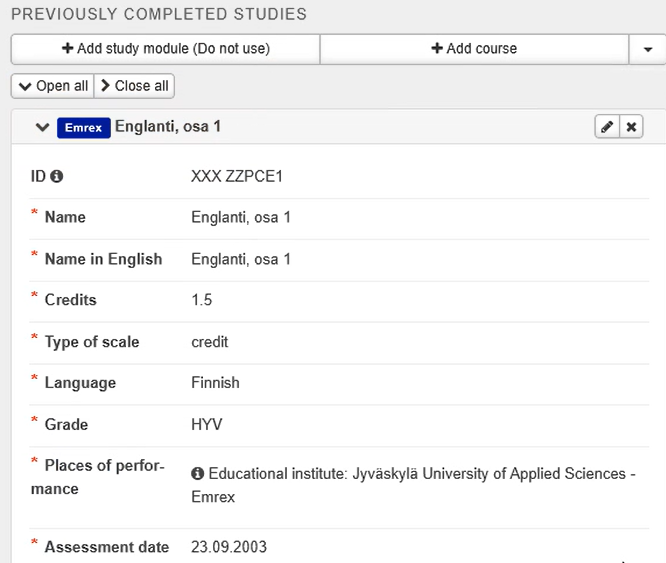
In the application, you will see that the course information has been imported via Emrex. You cannot edit the transferred course information, but if necessary, you can add more information about the study attainment by clicking the pencil icon.
METHOD 2. Importing previously completed studies to the application manually
Inclusion of an individual course (if you cannot use Emrex)
Inclusion of the study module (16-30 cr, if you cannot use Emrex)
To add a previously completed course or study module to the application, select ‘Add course.’ Do not use the Add study module button in any case!
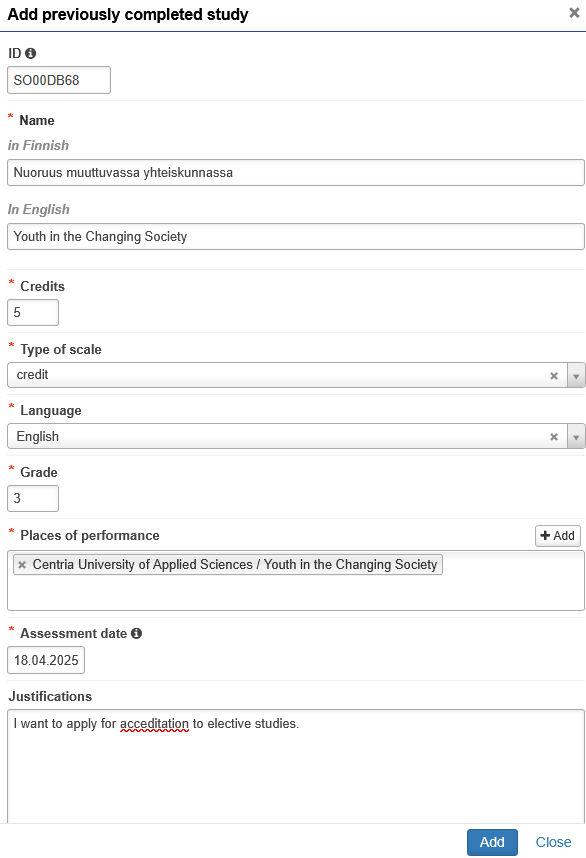
- Add the code (ID) of the completed course. Check the code from the higher education institution’s curriculum.
- Enter the name of the course as it appears on your transcript of records in Finnish and English.
- Add the credits.
- Select ‘credit’ as the type of scale.
- As the language, select the language in which you completed the course.
- In the Grade field, enter the grade you received for the course either in numerals 1–5 or, if the grade is pass, enter ‘H.’
- NOTE. The system only accepts a plain number or the letter H. Other entries lead to an error in the application submission phase.
- From the menu in the Places of performance section, select the place of performance that you added to the application in the previous step.
- You can also add places of performance directly in this view by selecting ‘Add’.
- As the Assessment date, enter the date on which you have received an assessment of the course from the transcript of records or certificate.
- If you wish, justify why you are applying for accreditation. In the Justifications field, you can also enter additional information about the completed studies.
- Click Add (figure 8).
Placing the included studies into the Personal Learning Plan (PLP)
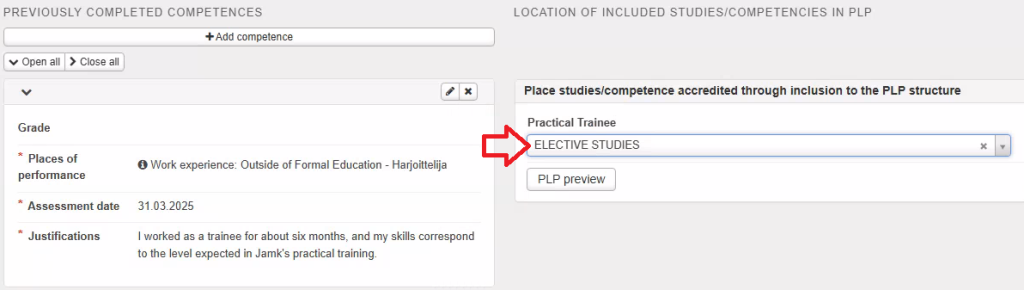
After that, place the studies to be included to your PLP by selecting the study module in which you want the studies to be placed from the menu (figure 9). If you do not place the studies, they will go to studies outside the PLP. You can preview the placement of studies in your PLP by clicking the PLP preview button.
Submitting the application
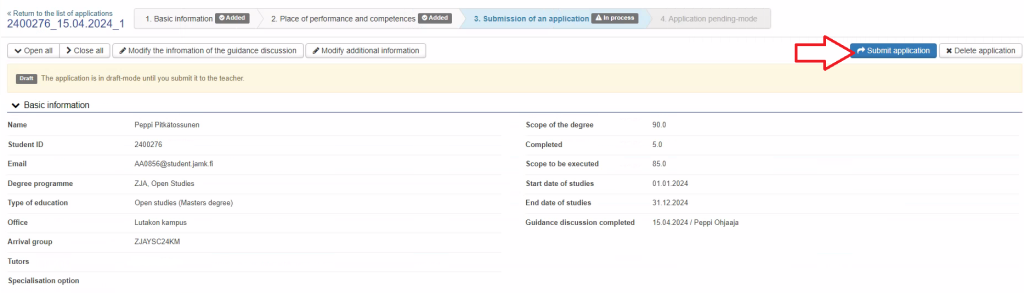
Once all the necessary information has been filled in, check the information you have provided in the application and submit the application by clicking Submit application at the top right of the front page of the application (figure 10). After this, you will no longer be able to edit your application.
You will receive email about the different stages of processing your application. You can also follow the progress of the application in Peppi. You can see your application in the eRPL Accreditation view. You can also view your application by clicking the Actions button on the application line and selecting Show.