Browse Classroom Calendars from Tuudo
Both students and staff can view the reservation calendars of the classrooms through Tuudo, even if they don’t have the right to book the room. They can also view the booking calendars of the classrooms through the QR codes on the doorposts of the rooms. Read more about QR Codes on this page.
View calendars
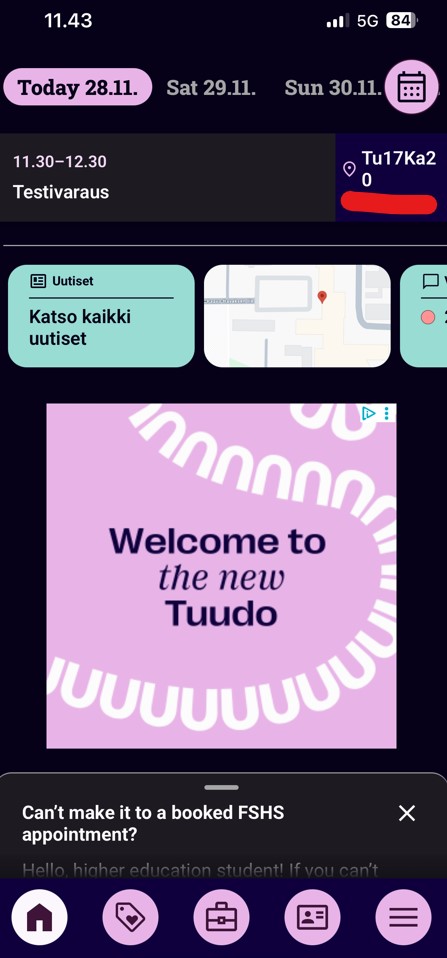
- You can browse reservation calendars when you choose app´s menu from below, choose Campus and click Reservations. You can also add Reservations to Favorite menu
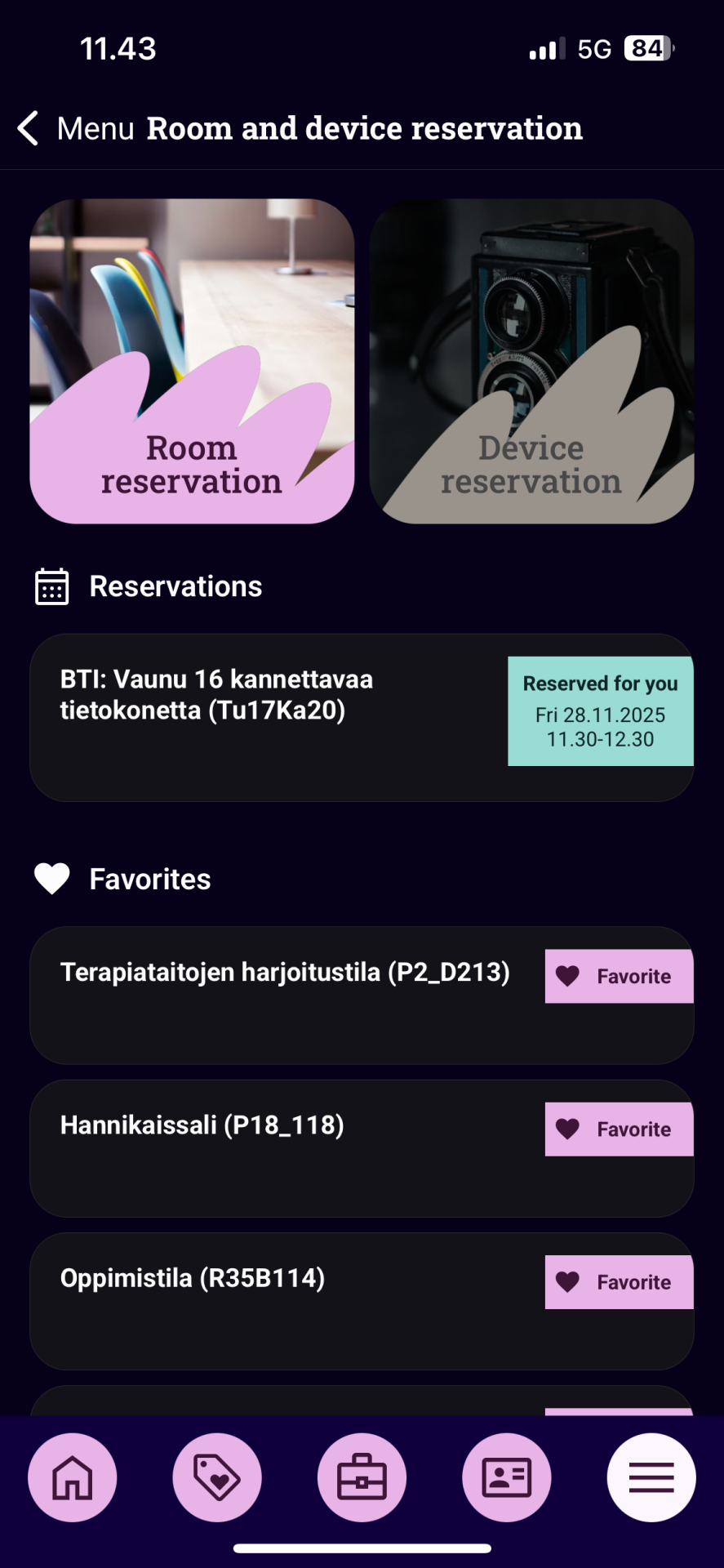
- You see the rooms or equipment to which you have the right to book or you have marked as favourite.
- When you click the room you can reserve it or browse the calendar
- When you click Room reservation you can browse other rooms
- If you have the right to book click Reserve button. More information on how to make a reservation can be found here.
- If you don’t have reservation rights you can see room´s calendar when you click Today below Reserve button. You can also make reservation there if you have rights
- If you can´t reserve the room you see pink text You cannot reserve.
Find classrooms
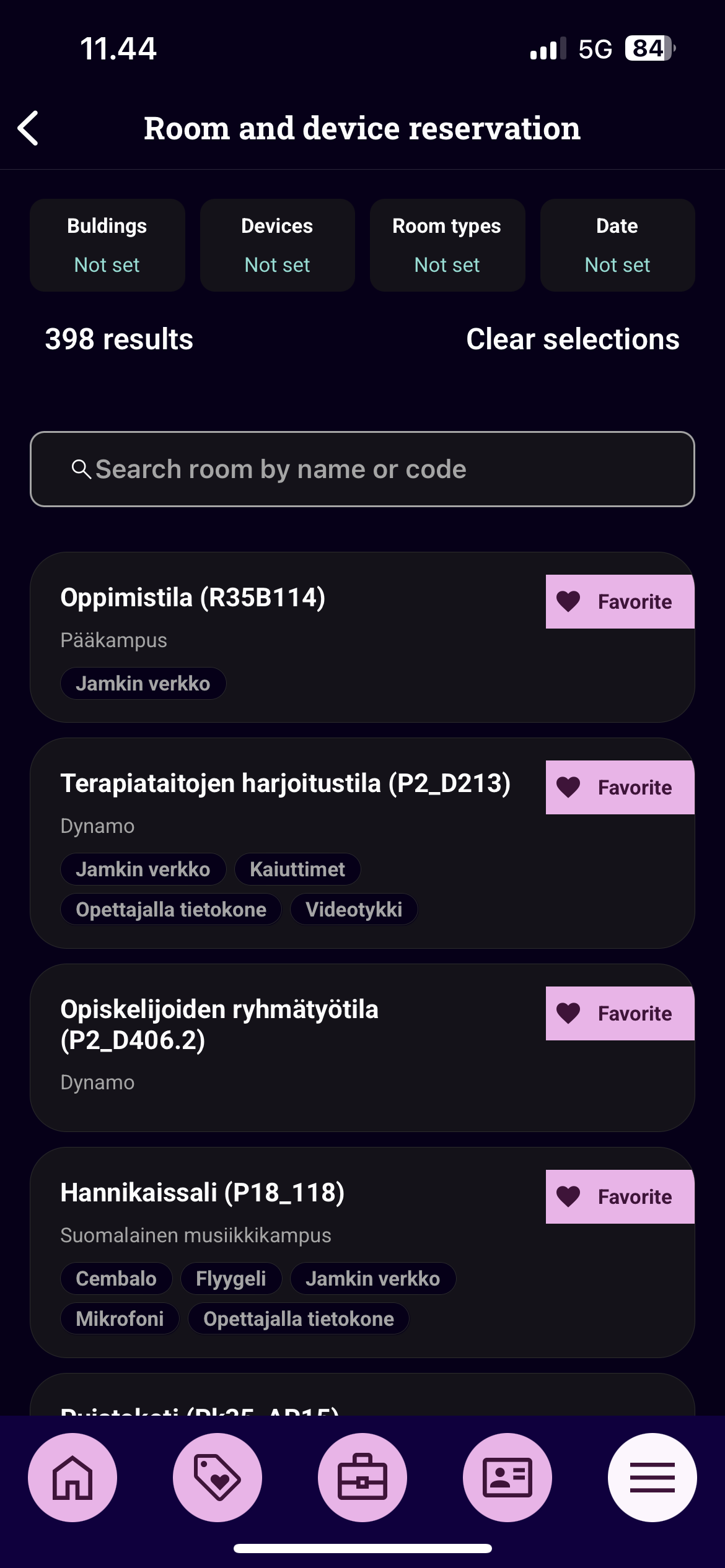
- You can search rooms by name or room code
- You can narrow the search for classroom calendars by building, equipment, room types or date.
- You can mark rooms as favorite when you click the heart icon on the room. You see those rooms in the front page of Reservation.