Instructions for the Reviewer
This page contains instructions for those acting in the role of a reviewer in the Valo service.
Creating an application manually for a student
If a student is unable to start the application process themselves for any reason, the reviewer can create a certificate application on their behalf. The application is created via the “Add application” function on the front page.
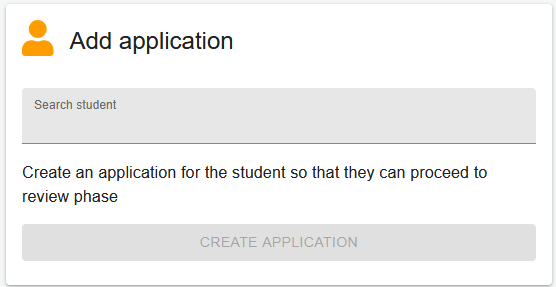
- Enter the student’s name or student number in the “Search student” field
- Select the correct student from the list
- Click the “Create application” button
A certificate application will be created for the student, and they will receive a notification via email. Please note that if a reviewer creates the application, the student will no longer be able to complete the AVOP survey.
Processing an application
The Valo service will send you an email when a student’s application is ready for processing. This happens automatically when:
- A degree student has completed the AVOP survey and successfully returned to the Valo service
- A student of Professional Teacher’s Education has started the application process
- The processor has been changed
Note that the application is not necessarily ready for review immediately when the email arrives, as the student may still be completing it.
NOTE! Using the Show questions function, you can display the question “Application is ready for review” in the list. This enables you to sort the list according to whether the student has marked the application as ready for review.
To review the application, go to the front page list:
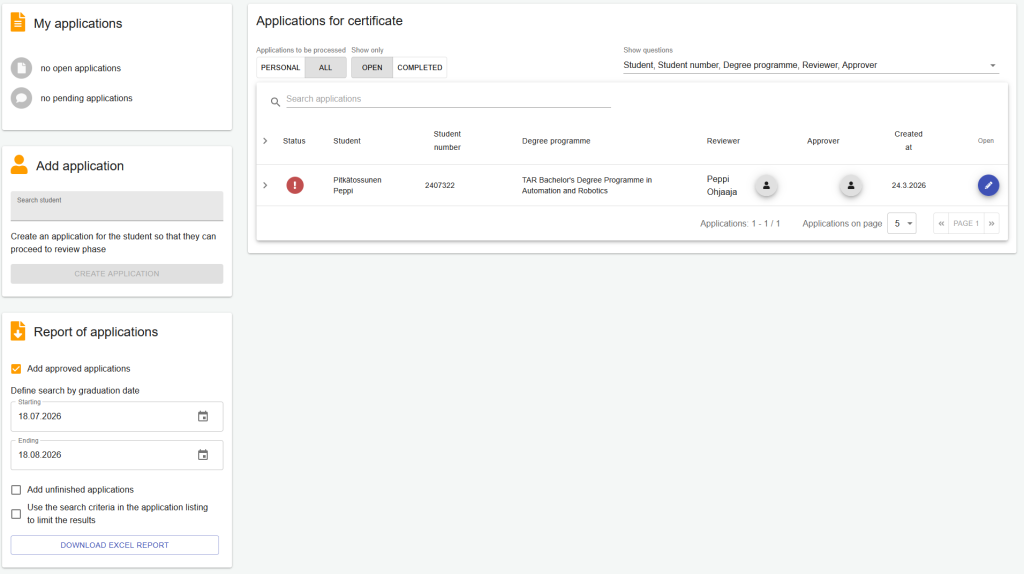
- Select your own applications for processing
- Open the application via the “Open application” option on the right side of the row
Reviewing the application
Check the entries made by the student and ensure all questions have been answered (incomplete rows are marked with a clock icon). Follow the “Reviewer’s checklist” list and mark phases as completed as they are finished.
- Check in the PLP that the graduation discussion has been completed as part of:
- Bachelor’s students: “Development as an Expert” or “Career Planning and Working Life Skills” course (credits marked)
- Master’s students: included in final-stage studies
- Professional Teacher Education students: “Developing a Professional Teacher Identity” course (credits marked)
Review the accuracy of the PLP and make any necessary corrections. Refer to the Peppi instructions if needed.
Ensure that:
- All mandatory studies have been completed
- The minimum scope of the degree is met
- Course names and their translations appear correctly on the transcript
- The thesis title is correct and matches the archived version
- Courses are placed under the correct study modules
- There are no duplicate grades for the same course
If you are unable to make corrections yourself, contact Student Services.
Contact the student if:
- They have not completed all sections of the application
- There are deficiencies in the application, such as missing studies
- The student is not registered as attending during the graduation semester
Sending the application for approval
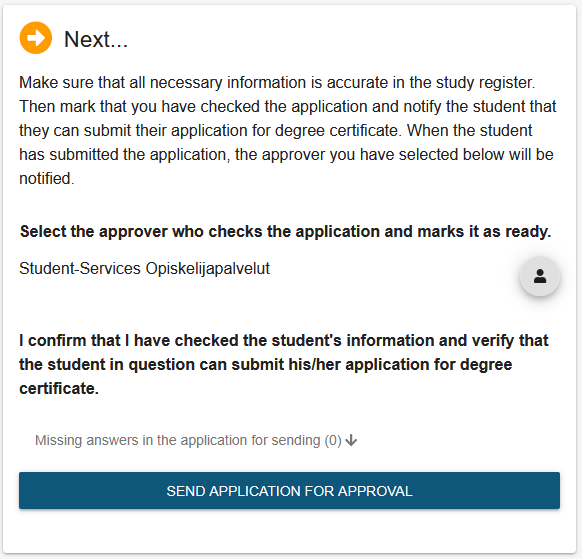
Send the application to the Valo approver designated for the degree programme by entering their name in the search field on the right. The search starts after at least three characters have been entered. Only individuals with the required permissions will appear in the selection list. Submit the application by clicking the “Send application for approval” button.